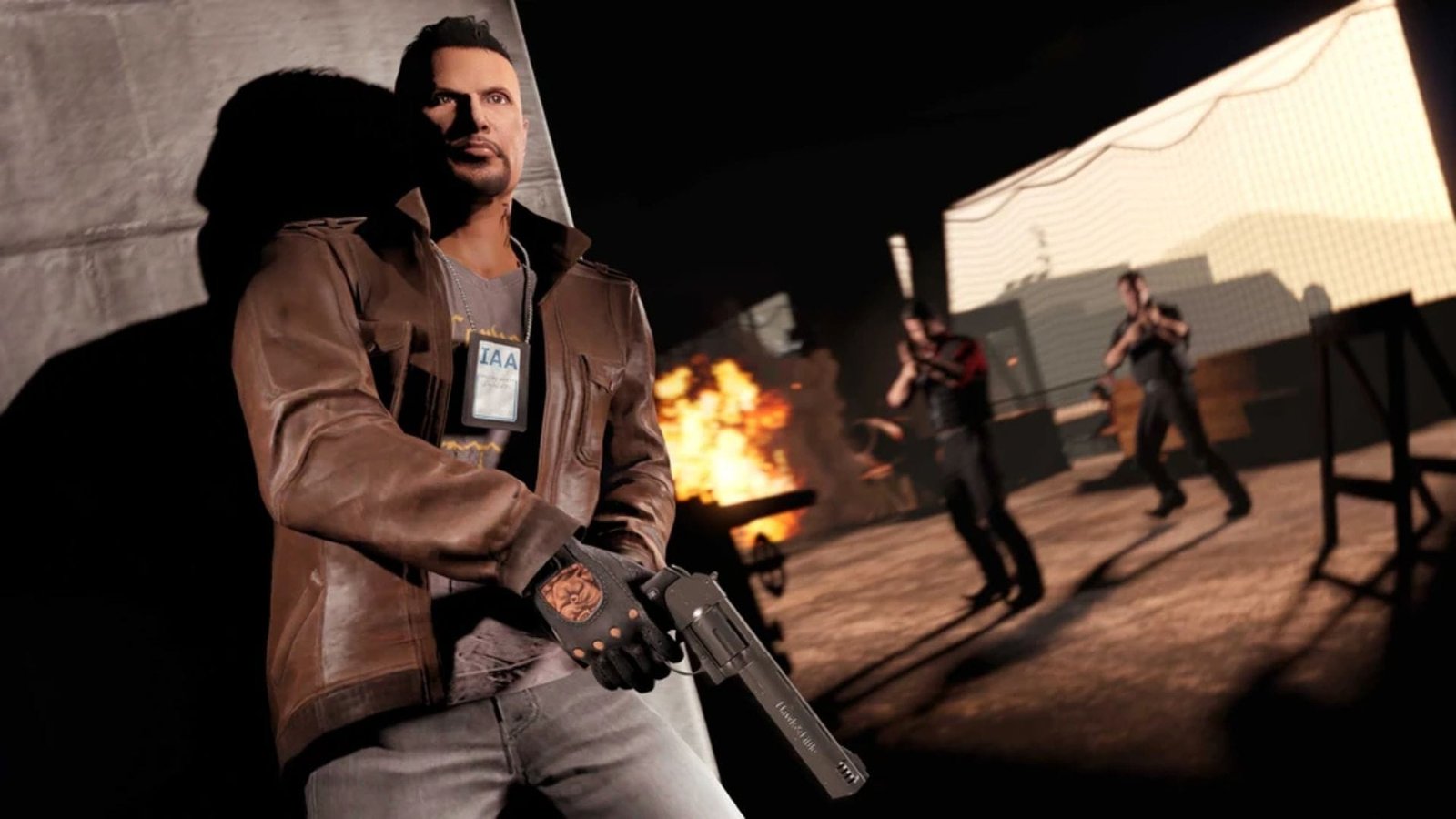

IAA badge on any outfit in GTA Online is still possible in 2026, and there are two reliable ways to do it. One method keeps all your saved outfits intact. The other uses the transfer glitch, which wipes your outfits but lets you add extra badge variations, including the one that appears on pants.
Below is a breakdown of both methods so you can choose what works best for you in GTA Online.
How to unlock IAA badge on any outfit in GTA Online
No transfer glitch (Keeps your outfits)

This method is safer because you won’t lose your saved outfits.
1) Unlock the IAA badge outfit
Head to the golden ‘U’ on the map. This is the ULP intelligence mission. Press right on the D-pad to start it and confirm settings.
In the mission lobby, select one of the outfits that already includes the IAA badge. Once you load in:
- Open Interaction Menu
- Go to Style
- Scroll to Illuminated Clothing
- Spam continously right on the D-pad for about 20-30 seconds
Wait until you’re kicked from the mission. To speed it up, go to your console dashboard or desktop briefly. When the alert appears, wait for few seconds and proceed. If done correctly, you’ll spawn into free roam still wearing the IAA outfit.
Go to a clothing store and begin building the outfit you want the badge merged onto.
2) Create a race at the same location
Open Rockstar Creator and create a Land Race.
- Set route type to Point to Point
- Place the trigger directly on top of the golden circle mission marker
- Make the race at least 0.62 miles long
- Test and publish it
Now your race should appear overlapping the golden U job marker. Stand on the race trigger and the golden circle at the same time.
- Equip the outfit you want the badge on.
- Press right on the D-pad twice to enter the job.
- If you see your custom outfit in the lobby, it worked.
Load in, go to your apartment, and save the outfit. Quit through your phone. You now have the IAA badge attached to that outfit.
3) Preparing for belt merge
Create the final outfit you want.
- If using a vest, select Peach Plate Carrier (#43).
- If using hoodies or layered tops, use Black Print T-Shirt underneath.
- Save this outfit in Slot 1.
Now equip one of the last four ‘Heist Coveralls’ outfits.
- Go to an Ammu-Nation with a soda machine.
- Press right on the D-pad to drink.
- Open pause menu > Online > Find New Session.
- Hover over Invite Only Session.
The moment your hood drops during the soda animation, switch sessions. When you load in:
- Re-equip your saved outfit
- Drink soda again
- Save the outfit once more
Start any Rockstar-created mission. Go into Ammu-Nation inside the mission and save the outfit again. Post that quit the mission.
4) Merging the belt
Equip the belt you want to merge.
- Start the bookmarked mission ‘It’s a G Thing.’
- Set clothing to Player Saved Outfits.
- Invite someone and launch.
In the lobby, scroll one slot to the right on owned outfits and ready up. Once inside:
- Wait a few seconds
- Quit the job
Register as CEO or MC.
- Sit inside a vehicle.
- Open CEO/MC style and switch one style right, then back left.
- Exit the vehicle.
The belt will now merge onto the outfit with the IAA badge. Save it immediately. That completes the non-transfer method.
Transfer glitch (Badge on outfit and pants)

This version in GTA Online deletes your saved outfits, so prepare carefully.
1) Prepare your main character
- Put all money in the bank
- Equip the outfit you want to keep
- Delete all saved outfits manually
Open Pause Menu > Online > Swap Character. Your main character must be in the left slot and male. Create a new female character in the right slot. Load into a public session.
2) Build the transfer outfits (Female character)
Go to a clothing store and equip:
- Standard Outfit #1
- Remove earrings
- Equip White Pearl Necklace
- Save in Slot 2 (‘Badge’)
Then add:
- Peach Camo Closed Field (Work Jackets)
- Blue Digital T-Shirt (Gunner T-Shirts)
- Spotted Muscle Pants
- Light Woodland Armored Gloves
- B&W Deco Earrings
Shoes:
- Deluxe Midnight Combat Boots (for white sport shoes) or,
- Pink Plain High Tops (to merge other shoes)
- Save in Slot 3 (Gun Belt).
For Paramedic belt:
- Use Blue Digital T-Shirt (Tucked)
- Save in Slot 4.
- Force save it.
3) Trigger the transfer
Open Creator > Create Land Race.
- Make it at least 0.62 miles long.
- Test it.
Pause > Online > Choose Character.
- Delete the female character.
On old gen or PC: return to story mode. On next-gen: join someone in different targeting mode to force story mode.
- Start a new Invite Only Session.
- You should spawn with your original outfit.
- Save it to Slot 20.
You will now see the transferred outfits available.
4) Final belt merge
Equip the outfit with the IAA badge in GTA Online.
- Build your final look.
- Delete the old badge outfit.
- Start bookmarked mission ‘It’s a G Thing.’
- Set clothing to Player Saved Outfits.
- Select the belt outfit (Gun or Paramedic).
Ready up. Inside the mission:
- Go to apartment wardrobe
- Save the outfit
- Quit via phone
You now have the belt and IAA badge merged together in GTA Online.
Check out more GTA-related content below:
Edited by Rishi Pallav